Choose the matching recovery route
If you used the community Android phone app, return to that app’s restore or undo controls and its saved restore point. If you used the computer workflow, use the upstream restore tools with the backup generated on your computer. These backup formats are not interchangeable.
Keep access to your TV
Keep the TV and the setup device on the same Wi-Fi. ADB recovery requires an authorized connection. Do not assume network access will still work after a firmware change or reset.
Use the upstream restore instructions
For the computer workflow, read tools/restore.sh and the troubleshooting guide at the pinned upstream version. Use the backup belonging to this TV. Review the script’s usage and the exact changes before running it; this guide intentionally does not invent a universal restore command.
Verify the original functions
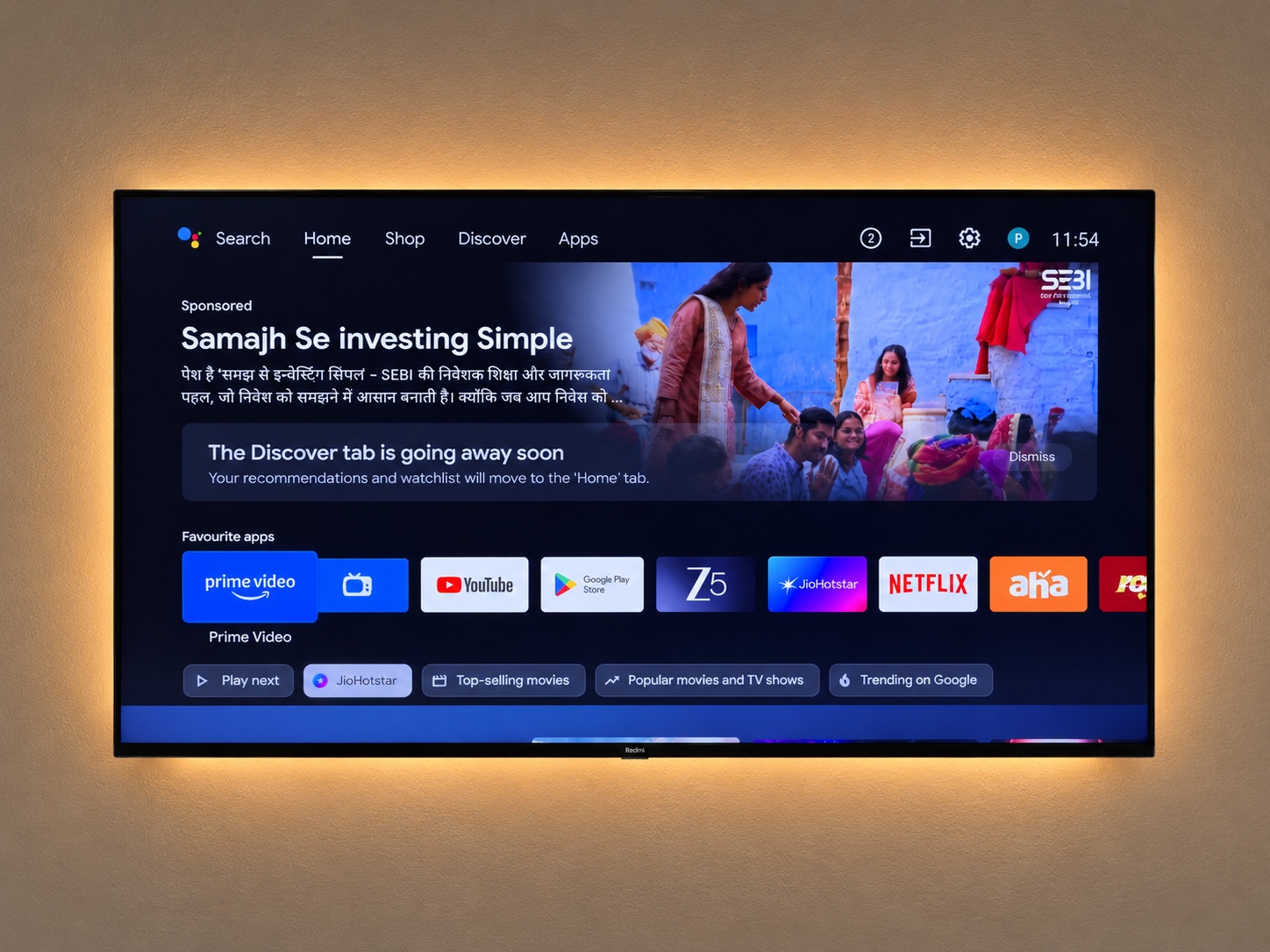
Check the original Home screen, remote, HDMI inputs, casting and the applications you need. If the set no longer boots or ADB is unreachable, the normal script may not be usable. Follow the manufacturer’s recovery advice and upstream device-specific documentation before considering a reset.
Source: upstream documentation ↗. Procedures depend on model, firmware and tool version.